Trabas: HTTP Tunneling Tool (ngrok Alternative)
     ███████ ███████    █    ███████    █     █████
        █    █     █   █ █   █     █   █ █   █
        █    ███████  █████  ███████  █████   █████
        █    █   █   █     █ █     █ █     █       █
        █    █   ██  █     █ ███████ █     █  █████
Trabas is an open-source, lightweight HTTP tunneling tool (an ngrok alternative) that lets you securely expose a local web service to the public internet over a persistent TCP tunnel. It focuses on simplicity, reproducibility, and observability through an all-in-one CLI. Ideal for quick API demos, webhook development, prototyping, or remote access.
Key Features
- Fast, minimal HTTP tunneling over stable TCP.
- Single portable binary.
- One server can multiplex multiple clients.
- Optional Redis-backed request queue for scale.
- Built-in rate limiting & response caching.
- TLS support (configurable).
- Simple configuration and clear CLI feedback.
Architecture & Usage Overview
Trabas runs as two coordinated processes:
- Server Service
- Accepts inbound public HTTP requests and maintains tunnels to connected clients.
- Forwards each public request to the matching client tunnel.
- Can optionally leverage Redis for distributed queueing (multiple server instances / HA).
- Client Service
- Maintains an outbound TCP tunnel to the server.
- Proxies incoming tunnel traffic to your local underlying service (e.g. localhost:8080).
This decoupling enables multiple local services to be exposed through a single public endpoint cluster.
Diagram
Here’s an example of how users access our local service through the internet:
Demo (Video)
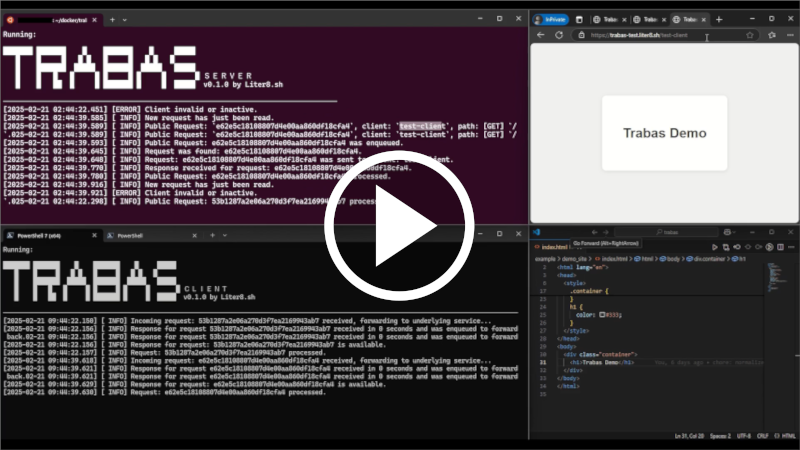
Watch a short demo of HTTP tunneling with Trabas:
Why Trabas vs ngrok?
- Open-source (no vendor lock-in).
- Self-hostable for internal tooling.
- Simple, transparent protocol.
- Lightweight with zero dependencies (except optional Redis).
Next Steps
- Get started: see Installation
- Configure tunnels: see Tunnel Setup
- Explore CLI: see CLI Reference
Need a feature? Open an issue or suggest an edit using the Edit button in the top bar.
Installation
To use the tool, you can use the all-in-one binary available from the latest release or the latest binary generated by the build action for the main branch.
Alternatively, you may build the binary file using cargo:
git clone https://github.com/amirkode/trabas.git && cd trabas
cargo build --release --manifest-path cli/Cargo.toml
you can find the built binary in target/release/trabas.
Ensure to rename binary file name to trabas if necessary.
Once you have the binary installed, you must be able to run it from the command line:
trabas --help
This should display the help message for the CLI. You may want to know the usage of the CLI commands. The documentation can be found [here]
Tunnel Setup Guide
This guide will walk you through setting up communication between the server and client services in Trabas:
Setup Tunnel
Server Service
Ensure a redis server is available in your system if the SV_REDIS_ENABLE config is set to true. Then, initialize the config as mentioned here.
Start the service:
trabas server run --public-port 8001 --client-port 8002
This starts the public request and client service listeners. You may want to limit the number of requests in a time for every request to each client service, just pass the --client-request-limit [your value] argument.
Client Service
Initialize the config as mentioned here. Start the service:
trabas client serve --host localhost --port 3000
this starts the public request and client service listeners.
User Access
Once the server and client are connected, you can access the underlying service in several ways:
-
Prefix Path:
serverhost:8001/[client_id] -
Query Parameter:
serverhost:8001/?trabas_client_id=[client_id]
Alternatively, after the first request, you can access the service directly at serverhost:8001 if the client ID is cached (the client will send a trabas_client_id cookie header). To enable this feature, start the server service with the --cache-client-id flag.
You may also use a reverse proxy to hide the actual port if needed.
*Note that the public endpoint will also be returned by the server once a connection successfully established.
TLS Setup
This guide will cover remote server setup especially with TLS for client-server connection. For simplicity, we will focus on Docker setup.
Proxy
Trabas utilizes standard TCP Connection for data sharing. It has its own data format (not tied to a particular protocol, i.e: HTTP) for client-server data sharing. If you use a reverse proxy, ensure it forwards the data packet without protocol specific validation. You may use NGINX with stream enabled or other tools that offer such feature.
Setting up TLS
To establish connection via TLS, we have two options:
- Behind Reverse Proxy (e.g: NGINX, HAProxy, etc.)
- The server service will not handle TLS directly, but rather the reverse proxy will handle it.
- Direct TLS Connection (supported since
v0.2.0)
Generate CA and Server Certification
You may generate these certificates using trusted issuers e.g: Let's Encrypt, DigiCert, etc. But, if your prefer self-signed certificates, you can use the following methods:
A. Using trabas CLI:
Since v0.2.0, trabas CLI supports generating self-signed certificates for server service.
You can generate the CA and server certificates using trabas CLI:
trabas server ssl-config generate-keys --host localhost --ip 127.0.0.1
This command will generate the CA and server certificates in the trabas_config directory. The generated files will be:
ca.crt: The CA certificate.ca.key: The CA private key.server.crt: The server certificate signed by the CA.server.csr: The server certificate signing request.server.key: The server private key.
B. Manual Generation with openssl:
In this case, we try to generate certificates for localhost (You should change some details for a real server deployment).
Generate CA Certificate
Create a private key:
openssl genpkey -algorithm RSA -out ca.key -pkeyopt rsa_keygen_bits:2048
Create a self-signed certificate:
openssl req -x509 -new -nodes -key ca.key -sha256 -days 3650 -out ca.crt -subj "/C=US/ST=State/L=City/O=Organization/OU=OrgUnit/CN=Example CA"
Generate Server Certificate signed by the CA
Create a server private key:
openssl genpkey -algorithm RSA -out server.key -pkeyopt rsa_keygen_bits:2048
Create a certificate signing request (CSR):
openssl req -new -key server.key -out server.csr -subj "/C=US/ST=State/L=City/O=Organization/OU=OrgUnit/CN=localhost"
Prepare a configuration file (server.conf) for the certificate:
[ v3_req ]
keyUsage = keyEncipherment, dataEncipherment
extendedKeyUsage = serverAuth
subjectAltName = @alt_names

[ alt_names ]
DNS.1 = localhost
IP.1 = 127.0.0.1
Sign the server certificate with the CA certificate:
foo@bar:~$ openssl x509 -req -in server.csr -CA ca.crt -CAkey ca.key -CAcreateserial -out server.crt -days 365 -sha256 -extfile server.conf -extensions v3_req
Verify the generated certificates
foo@bar:~$ openssl verify -CAfile ca.crt server.crt
Running the Server Service with Docker
You can deploy the server using Docker in two main ways:
A. Behind NGINX (Reverse Proxy)
- Use the provided Dockerfiles and
docker-compose.ymlindocker/server/with_proxy. - Copy
server.crtandserver.keyto thessldirectory. - Adjust
nginx.confand ensure NGINX listens on your chosen port (default:3377). - Start the service:
- With Redis:
cd docker/server/with_proxy/with_redis && docker compose up - Without Redis:
cd docker/server/with_proxy/without_redis && docker compose up
- With Redis:
- Default ports: public
8787, client8789. Containers:trabas_server,trabas_nginx.
B. Direct Access (No Proxy)
- Use the provided Dockerfiles and
docker-compose.ymlindocker/server/direct. - Copy
server.crtandserver.keyto[bin directory]/trabas_config/ssl(already present if generated by Trabas CLI). - Start the service:
- With Redis:
cd docker/server/direct/with_redis && docker compose up - Without Redis:
cd docker/server/direct/without_redis && docker compose up
- With Redis:
- Default ports: public
8787, client8789. Container:trabas_server.
If the server starts successfully, you should see logs like:
[Public Listerner] Listening on: 0.0.0.0:8787.
[Client Listerner] Listening on: 0.0.0.0:8789.
Client Setup
Setting up Client Service
Trabas has supported TLS connection from client service.
You can follow these steps:
-
In your client host machine (local), copy the generated
ca.crtto[bin directory]/trabas_config/ssl/. Otherwise, you may enableCL_TLS_TOFU_ENABLEconfig to enable Trust On First Use (TOFU) for TLS connection. -
Ensure the server host and server port are correctly set to our server service (or target NGINX proxy).
-
You run as the client service normally with additional
--tlsoption:trabas client serve --host localhost --port 3000 --tls
Once all steps are complete, the services should function properly.
Trabas CLI Documentation
Introduction
trabas (the name of the binary file) is a command-line interface (CLI) tool designed for All-in-One functionality for HTTP tunneling. This guide provides detailed documentation for all available commands and options.
Usage
The basic syntanx for using trabas is:
trabas [COMMAND] [SUBCOMMANDS if any] [OPTIONS]
Run the following for the help on specific command:
trabas [COMMAND] [SUBCOMMANDS if any] --help
The following section provides a brief overview of each command and its subcommands:
Server
CLI commands for managing the server:
set-config: Set server configurationsssl-config: Configure SSLcache-config: Configure cacherun: Run the server
set-config
trabas server set-config
Set server service configuration.
Options
| Option | Type | Description |
|---|---|---|
--gen-key | No value [Optional] | Generate server secret |
--key | String [Optional] | Manual set server secret |
--public-endpoint | String | A public endpoint host will be returned to the client |
--redis-enable | String | Enable flag whether to use redis for temporary transfer store. The value is either true or false |
--redis-host | String | Host for redis |
--redis-port | String | Port for redis |
--redis-pass | String | Password redis |
--force | No value [Optional] | Force rewrite all configs that has been set |
Example
trabas server set-config --gen-key --redis-host localhost --redis-port 6379 --redis-pass mypass --force
trabas server ssl-config generate-keys
Setting SSL configuration for the server.
Options
| Option | Type | Description |
|---|---|---|
--server_conf_path | String | Server configuration file path |
--host | String | Host for SANs |
--ip | String | IP for SANs |
--force | No value [Optional] | Force rewrite all configs that has been set |
Example
If we have our server.conf file as follows:
trabas server ssl-config generate-keys --server_conf_path /path/to/server.conf
Or if simply provide the host and/or ip as follows:
trabas server ssl-config generate-keys --host localhost --ip 127.0.0.1
ssl-config
trabas server ssl-config generate-keys
Setting SSL configuration for the server.
Options
| Option | Type | Description |
|---|---|---|
--server_conf_path | String | Server configuration file path |
--host | String | Host for SANs |
--ip | String | IP for SANs |
--force | No value [Optional] | Force rewrite all configs that has been set |
Example
If we have our server.conf file as follows:
trabas server ssl-config generate-keys --server_conf_path /path/to/server.conf
Or if simply provide the host and/or ip as follows:
trabas server ssl-config generate-keys --host localhost --ip 127.0.0.1
cache-config
trabas server cache-config set
Setting cache configuration for specific requests.
NOTE: This is only available when Redis is enabled.
Options
| Option | Type | Description |
|---|---|---|
--client-id | String | Client ID |
--method | String | Request method |
--path | String | Request path |
--exp-duration | Integer | Request Cache duration in seconds |
Example
trabas server cache-config set --client-id client1 --method GET --path /ping --exp-duration 60
trabas server cache-config remove
Remove cache configuration for specific requests.
NOTE: This is only available when Redis is enabled.
Options
| Option | Type | Description |
|---|---|---|
--client-id | String | Client ID |
--method | String | Request method |
--path | String | Request path |
Example
trabas server cache-config remove --client-id client1 --method GET --path /ping
trabas server cache-config list
Show all cache configurations for specific requests.
NOTE: This is only available when Redis is enabled.
run
trabas server run
Run server service.
Options
| Option | Type | Description |
|---|---|---|
--host | String [Optional] | Target host where service will be listening on |
--public_port | Integer | Port for end user access |
--client_port | Integer | Port for client service access |
--client-request-limit | Integer [Optional] | The request limit for each client service |
--cache-client-id | No value [Optional] | Allow client id to pass through cookie header trabas_client_id. This also caches the client id passed by request path using Set-Cookie response header. |
--return-tunnel-id | No value [Optional] | Return tunnel ID to the response headers with key trabas_tunnel_id |
--tls | No value [Optional] | Enable TLS for the server |
Example
trabas server run --public-port 8001 --client-port 8002
Client
CLI commands for managing the client:
set-config: Set client configurationsserve: Serve the client
set-config
trabas client set-config
Set client service configuration.
Options
| Option | Type | Description |
|---|---|---|
--client-id | No value/String [Optional] | Specify Client ID or Generate it if no value is passed |
--tls-tofu-enable | Boolean [Optional] | Enable TOFU (Trust On First Use) for TLS connection |
--server-host | String [Optional] | Server service host |
--server-port | Integer | Server service port |
--server-signing-key | String | Server secret for server authentication |
--force | No value [Optional] | Force rewrite all configs that has been set |
Example
trabas client set-config --server-port 8000 --server-host myhost.com --client-id client1 --server-signing-key 234523 --force
serve
trabas client serve
Connect to the server service and serve the underlying service.
Options
| Option | Type | Description |
|---|---|---|
--host | String [Optional] | Target host of the underlying service i.e: localhost |
--port | Integer | Target port of the underlying service |
--tls | No value [Optional] | Enable TLS connection to the server service |
Example
trabas client serve --host localhost --port 8001 --tls
Common
CLI commands for managing the client:
global-config- Editing global configurationsversion- Displaying the current version
global-config
trabas global-config
Manage global configuration.
| Option | Type | Description |
|---|---|---|
--set-debug | None | Set environment as debug |
--unset-debug | None | Set environment as non debug |
--log-limit | Integer | Set the maximum number logs will be shown in the console |
version
trabas version
Show current version of the tool.
Trabas Configuration Documentation
Trabas uses file based .env to the config locally inside the binary file location in trabas_config/.
This config file shares for both server service and client service if you use the same binary file to run both services.
The configuration can be set using the CLI or by directly editing the .env file.
The following section provides a detailed explanation of each configuration:
Server
Configuration for the server service.
SV_SECRET
A secret key shared with client service connection for HMAC validation:
trabas server set-config --gen-key
this will generate the secret for the first time. You may regenerate later using --force option.
SV_PUBLIC_ENDPOINT
A public endpoint host will be returned to the client:
trabas server set-config --public-endpoint https://yourendpoint.com
SV_PUBLIC_REQUEST_TIMEOUT
A public request timeout in seconds:
trabas server set-config --public-request-timeout 10
SV_CACHE_CONFIGS
trabas server set-config --cache-configs [value goes here]
Trabas provides a caching layer for a particular HTTP request. The cache is unique by Client ID, Method, URI, and Body. This is reliable when the request headers is insignificant to the result (Some ID spefic request by headers might not use this config).
Manage Cache Rule
This config will store Client ID, Method, Path, and Expiry Duration in Seconds. You easily set while the Redis is ready as follows:
trabas server cache-config set --client-id client1 --method POST --path /ping --exp-duration 10
If you want to disable the rule, just remove it with this command:
trabas server cache-config remove --client-id client1 --method POST --path /ping
*note: change the values with yours.
Show Cache Rules
You may see all the configs you set as follows:
foo@bar:~$ trabas server cache-config list
This will show all rules you have added:
Request Cache Configurations:
+-----------+--------+-------+---------------------------+
| Client ID | Method | Path  | Expiry Duration (Seconds) |
+-----------+--------+-------+---------------------------+
| client1   | GET    | /ping |            10             |
+-----------+--------+-------+---------------------------+
| client1   | POST   | /ping |            10             |
+-----------+--------+-------+---------------------------+
Worth noting that if you the rule/config is unique by Client ID, Method, and Path. Setting the existing one will only replace the Expiry Duration value.
SV_REDIS_ENABLE
If redis is preferred for the request queue (the value true or false):
trabas server set-config --redis-enable [value goes here]
SV_REDIS_HOST
A redis host:
trabas server set-config --redis-host [value goes here]
SV_REDIS_PORT
A redis port:
trabas server set-config --redis-port [value goes here]
SV_REDIS_PASS
A redis pass (it’s required for now):
trabas server set-config --redis-pass [value goes here]
Run at once
You may also run the command at once:
trabas server set-config --gen-key --redis-host [value] --redis-port [value] --redis-pass [value]
Client
Configuration for the client service.
CL_ID
A client id is used for indentification on the server. You can generate one:
trabas client set-config --client-id
You may also want to specific the value, but ensure your id is unique accross registered clients:
trabas client set-config --client-id [value goes here]
CL_TLS_TOFU_ENABLE
A flag indicating whether to enable TOFU (Trust On First Use) for TLS connections (the value true or false):
trabas client set-config --tls-tofu-enable [value goes here]
CL_SERVER_HOST
A server host:
trabas client set-config --server-host [value goes here]
CL_SERVER_PORT
A server port:
trabas client set-config --server-port [value goes here]
CL_SERVER_SIGNING_KEY
A server signing key, used for server authentication.
trabas client set-config --server-signing-key [value goes here]
Run at once
You may also run the command at once:
trabas client set-config --client-id --server-host [value] --server-port [value]
CL_SERVER_FINGERPRINT
A server fingerprint, used for verifying the server’s identity. The value will be generated automatically when the first time handshake occurs.
Note
Trabas also provides --force option to replace an existing config value as mentioned :
trabas client set-config --gen-key --force
Global
Configuration for global settings that apply to both server and client services.
GLOBAL_DEBUG
If the value is set to true, the service will show proper logs and won’t handle any panics.
Setting the DEBUG mode:
foo@bar:~$ trabas global-config --set-debug
Unsetting the DEBUG mode:
foo@bar:~$ trabas global-config --unset-debug
GLOBAL_LOG_LIMIT
The maximum number logs will be shown in the console.
foo@bar:~$ trabas global-config --log-limit 5
*note: This option does not apply to debug enabled logs.